
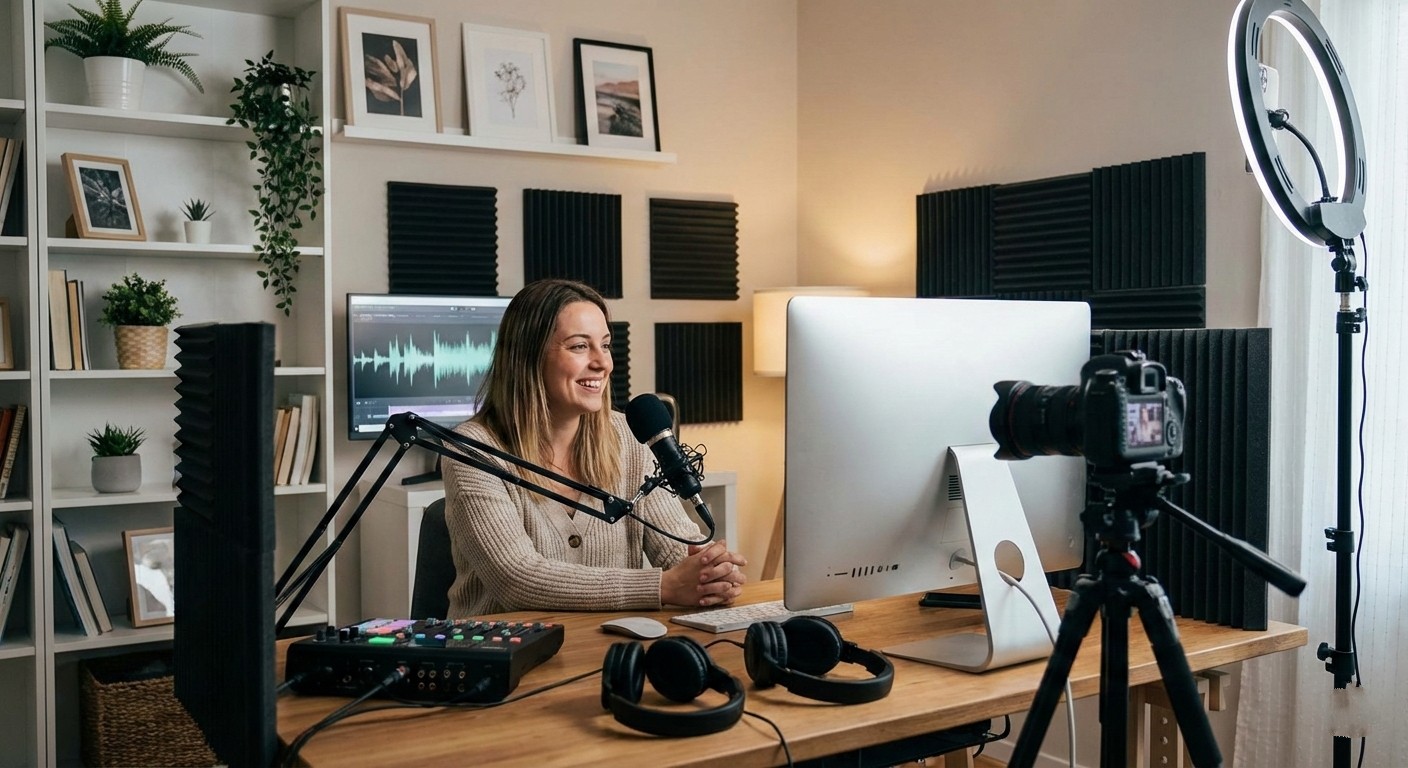
You don’t need thousands of dollars in equipment to become a successful video chat host. In fact, you can create a professional-looking setup for under $200 that will help you stand out, attract clients, and maximize your earnings.
This guide breaks down exactly what you need, what to look for, and how to set everything up for the best results.
The Essential Equipment Checklist
Here’s what you’ll need to get started:
- Webcam (or smartphone with good camera)
- Lighting
- Microphone or headset
- Fast internet connection
- Computer or smartphone
- Background setup
Let’s break down each component and show you how to get professional results on a budget.
1. Webcam: Your Most Important Investment
Built-In vs External Webcam
Most laptops come with built-in webcams, but they’re often low quality. An external webcam significantly improves your video quality, which can directly impact your earnings.
Recommended Budget Webcams ($40-$80)
Logitech C920 ($50-$70)
- 1080p Full HD video
- Excellent low-light performance
- Industry standard for streamers and video chat hosts
- Works with Windows, Mac, and most platforms
Logitech C922 ($60-$80)
- Upgraded version of C920
- Better frame rate (60fps at 720p)
- Includes background removal software
Budget Alternative: Use Your Smartphone ($0-$20)
Modern smartphones often have better cameras than budget webcams. You can use apps like DroidCam (Android) or EpocCam (iPhone) to turn your phone into a webcam. You’ll just need a phone stand or tripod ($10-$20).
Webcam Setup Tips
- Position at eye level: Place your webcam at or slightly above eye level for the most flattering angle
- Distance matters: Sit about 2-3 feet from your camera
- Test before going live: Check your framing and make sure your face is well-centered
2. Lighting: The Secret to Looking Professional
Good lighting is THE difference between looking amateur and looking professional. Natural light is great, but inconsistent—artificial lighting gives you full control.
The Ring Light Solution ($20-$50)
Ring lights are perfect for video chat hosts because they:
- Provide even, flattering illumination
- Eliminate harsh shadows
- Create a pleasant “catch light” in your eyes
- Are adjustable for brightness
Recommended Ring Lights:
10″ Ring Light with Tripod Stand ($20-$30)
- Perfect for beginners
- Includes phone holder
- Multiple brightness levels
- Available on Amazon
12″ Ring Light with Adjustable Stand ($35-$50)
- Larger light = better coverage
- Taller stand for more flexibility
- Remote control option
Budget Alternative: DIY Lighting ($5-$15)
Can’t afford a ring light yet? Here are budget hacks:
- Desk lamps: Use 2-3 soft white LED bulbs (5000K-6500K) positioned at different angles
- Natural light: Face a window during daytime hours (but be consistent with timing)
- White bedsheets: Hang in front of harsh lights to diffuse and soften them
Lighting Setup Tips
- Three-point lighting: Key light (main), fill light (side), back light (behind you for depth)
- Avoid overhead lighting: It creates unflattering shadows under your eyes
- Test different positions: Move lights around until you find the most flattering setup
- Warm vs cool: Warm light (3000K-4000K) is cozy; cool light (5000K-6500K) is energizing
3. Audio: Clear Sound = More Earnings
Clients need to hear you clearly. Distorted audio, background noise, or echo will drive them away fast.
Recommended Microphones & Headsets ($15-$50)
USB Microphone: Fifine K669B ($25-$30)
- Plug-and-play USB mic
- Clear, professional sound
- Adjustable stand included
- Great for quiet environments
Headset with Mic: Logitech H390 ($20-$30)
- Built-in noise-canceling microphone
- Comfortable for long sessions
- Lets you hear clients clearly
- Good for noisy environments
Budget Option: Earbuds with Mic ($10-$20)
Most smartphone earbuds (Apple EarPods, Samsung Galaxy Buds, etc.) have surprisingly good built-in mics and work well for video chat.
Audio Setup Tips
- Reduce background noise: Close windows, turn off fans, silence notifications
- Test audio levels: You should be clearly audible without being too loud
- Use headphones: Prevents echo and feedback from speakers
- Speak clearly: Enunciate and project your voice naturally
4. Internet Speed: The Foundation of Quality
No amount of equipment matters if your internet connection is slow or unstable.
Minimum Requirements
- Download speed: At least 3 Mbps
- Upload speed: At least 1.5 Mbps (upload is more important for video chat)
- Latency (ping): Under 100ms
Recommended Speeds for Best Quality
- Download: 10+ Mbps
- Upload: 5+ Mbps
Test your speed: Visit speedtest.net to check your current internet speed.
Improving Your Connection
- Use Ethernet cable: Wired connections are more stable than Wi-Fi
- Upgrade your router: If your router is 5+ years old, consider upgrading ($30-$100)
- Close background apps: Netflix, downloads, and other apps can slow your connection
- Work during off-peak hours: Internet is faster when fewer people in your building are online
5. Computer or Smartphone Requirements
Computer
Almost any modern computer can handle video chat. Minimum specs:
- Processor: Intel Core i3 or equivalent
- RAM: 4GB (8GB preferred)
- Operating System: Windows 10/11 or macOS 10.13+
Smartphone
If you’re using a smartphone instead:
- iPhone: iPhone 7 or newer
- Android: Any phone from the last 3-4 years with a good camera
- Storage: At least 32GB available
6. Background Setup: Keep It Clean & Professional
Your background should be visually appealing without being distracting.
Best Background Options
Plain Wall ($0)
- Simple, clean, professional
- White, beige, or light gray works best
- Eliminates distractions
Fabric Backdrop ($10-$30)
- Hang a solid-colored bedsheet or fabric
- Neutral tones (cream, soft gray, light blue)
- Easy to change for variety
Bookshelf or Plants ($20-$50)
- Adds personality and depth
- Fake plants work great
- Arrange neatly—avoid clutter
Background Rules
- No personal information: Remove diplomas, name tags, mail, or family photos
- Keep it tidy: Messy backgrounds are distracting
- Avoid windows: They can reveal your location and cause backlighting issues
- Test on camera: What looks good in person might not translate well on video
Complete Setup Examples by Budget
Ultra-Budget Setup ($50-$75)
- Webcam: Use smartphone camera ($0) + phone stand ($15)
- Lighting: Desk lamps with LED bulbs ($10)
- Audio: Smartphone earbuds ($10)
- Background: Plain wall or bedsheet ($0-$10)
- Internet: Existing connection (test it first!)
Total: $35-$45 + phone stand
Recommended Setup ($120-$180)
- Webcam: Logitech C920 ($60)
- Lighting: 10″ ring light with stand ($25)
- Audio: Logitech H390 headset ($25)
- Background: Fabric backdrop ($15)
- Extras: Ethernet cable ($10)
Total: $135
Pro Setup ($180-$250)
- Webcam: Logitech C922 ($75)
- Lighting: 12″ ring light with remote ($45)
- Audio: Fifine USB mic ($30)
- Background: Backdrop + decorative plants ($30)
- Extras: Ethernet cable + cable management ($15)
Total: $195
Setup Tips for Maximum Earnings
1. Test Everything Before Your First Session
Run test calls with friends or family to check:
- Video quality and framing
- Audio clarity
- Lighting (no harsh shadows or glare)
- Background appearance
- Internet stability
2. Create a Dedicated Workspace
Set up a permanent area for video chat hosting. This ensures:
- Consistency in video quality
- Faster setup time
- Professional appearance
3. Invest in Upgrades Over Time
Start with the basics, then reinvest your earnings:
- Month 1: Basic setup
- Month 2: Better lighting
- Month 3: Upgrade webcam or mic
- Month 4: Improve background or add decorations
4. Keep Your Setup Clean
Dust your equipment weekly, keep cables organized, and maintain a professional appearance. Clients notice attention to detail.
Common Setup Mistakes to Avoid
- Sitting too far from the camera: Your face should fill most of the frame
- Backlighting: Never sit with a bright window or light behind you
- Echo and noise: Use headphones and minimize background sound
- Cluttered background: Keep it simple and professional
- Poor lighting: Invest in at least one light source
- Unstable internet: Test your connection and upgrade if needed
Final Thoughts: Good Setup = Higher Earnings
A professional-looking setup doesn’t just make you feel more confident—it directly impacts your earnings. Clients are willing to pay more for hosts who provide a quality visual and audio experience.
The good news? You don’t need to break the bank. With less than $200, you can create a setup that rivals professional streamers and broadcasters.
Ready to set up your home studio and start earning?
Your studio. Your schedule. Your earnings.